
Free Windows software from xShot Golf

Mirror your iPhone.
See the bigger picture.

xShot Mirror puts your iPhone screen on a Windows PC. See xShot Launch Monitor on a computer display, show it through a projector connected to the PC, or share other supported iPhone apps.

Windows 10 22H2 / Windows 11 · 64-bit · Version 1.0.0

Open source under GPLv3 · Corresponding source code

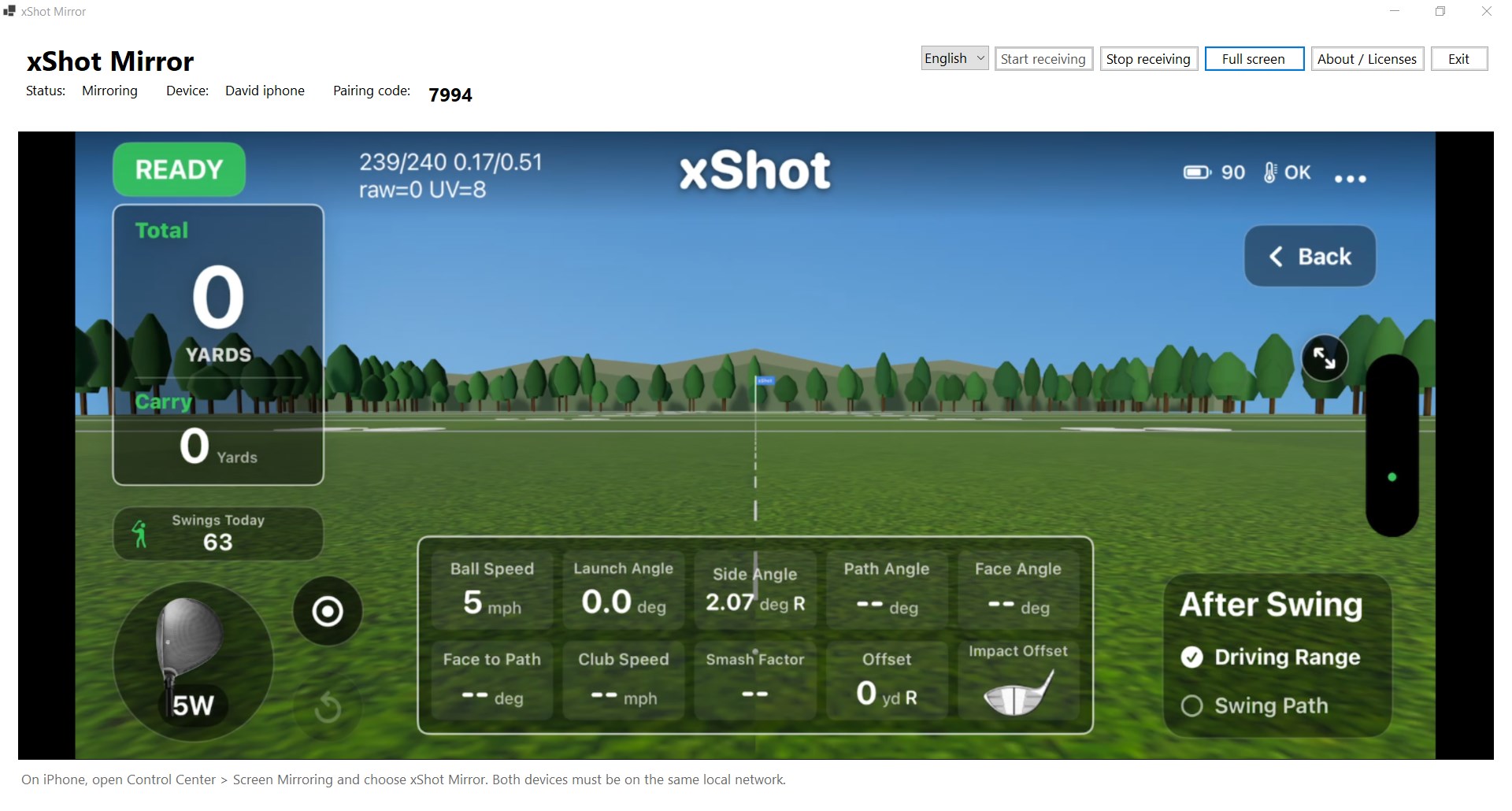
Complete xShot Mirror Windows software window, with controls, pairing code and an iPhone xShot Launch Monitor driving range screen
The complete xShot Mirror app window during a driving range session. Click to view full size.
Free to download and use Wireless on your local network Full screen on your PC No extra app needed on iPhone

Real software captures

See what your iPhone looks like on Windows.

These are complete, unedited captures of the xShot Mirror Windows app receiving an iPhone screen. Click any screenshot to view it at full size.

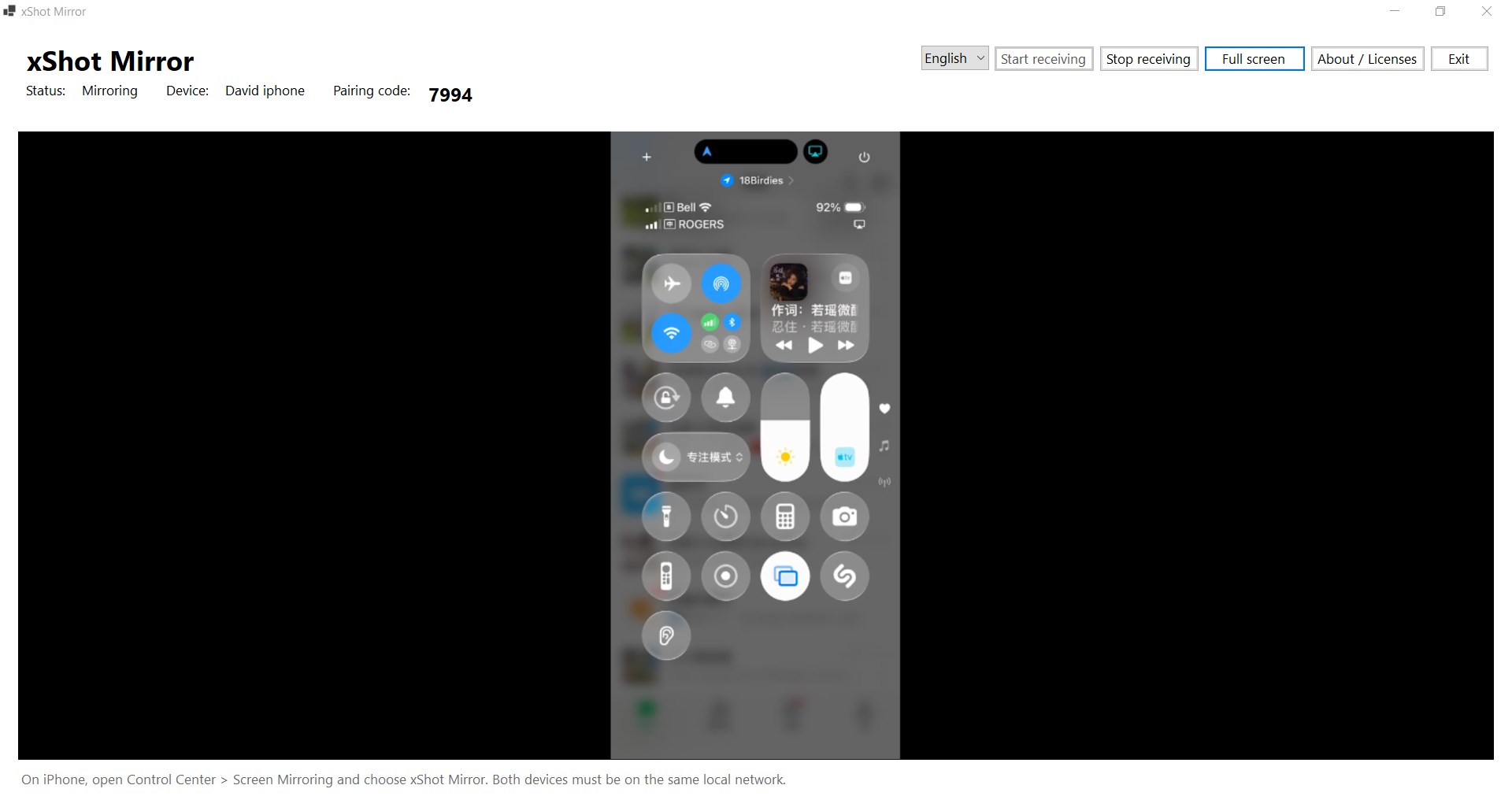
Complete xShot Mirror software window showing an iPhone Control Center, app controls and pairing code
Everyday iPhone mirroringThe full app window with your iPhone screen at its center.
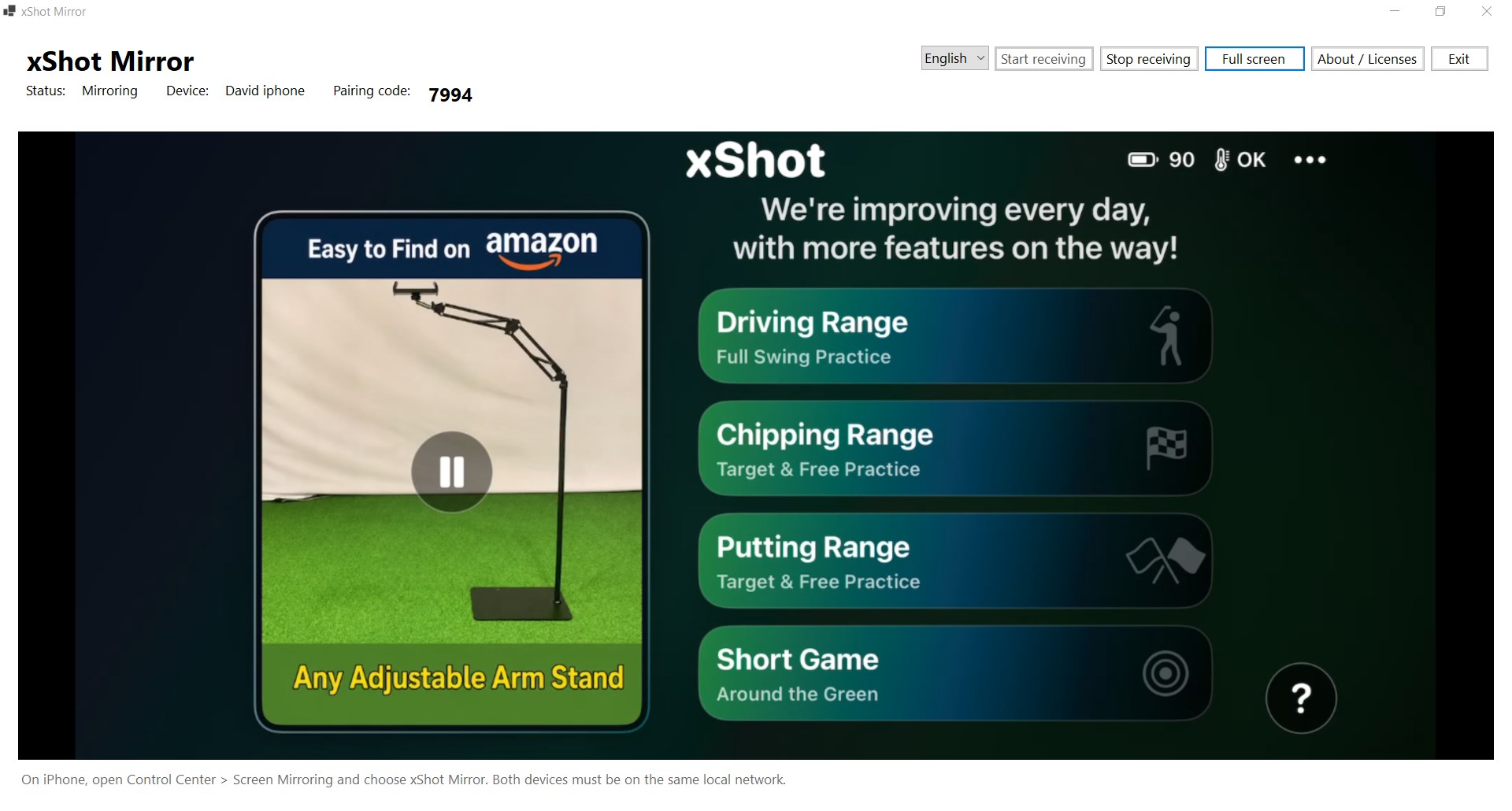
Complete xShot Mirror Windows app showing the English xShot Golf home screen
xShot Golf home screenThe iPhone app displayed inside xShot Mirror on Windows.
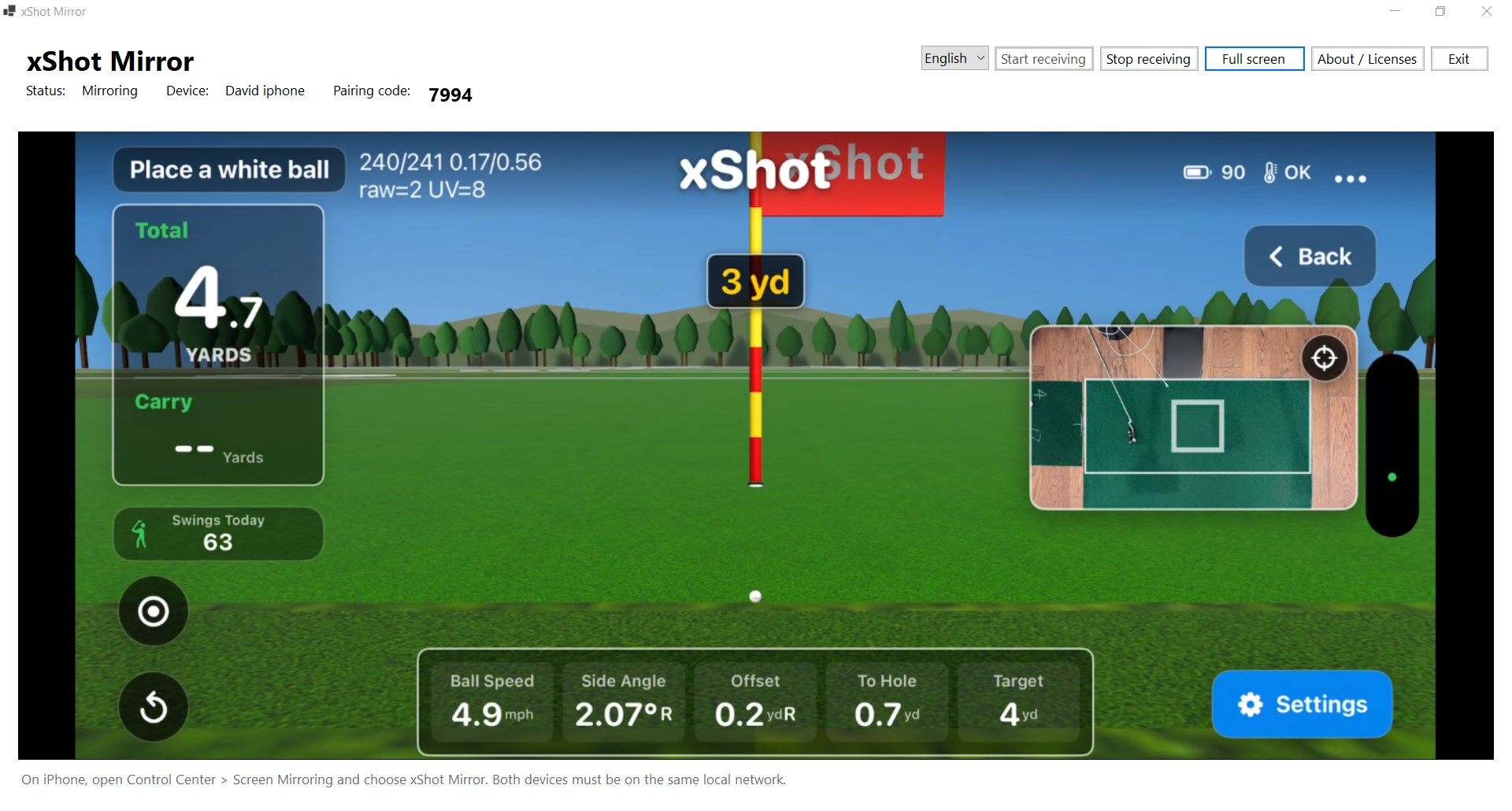
Complete xShot Mirror Windows app showing xShot Golf short game practice and shot metrics
Short game on a larger screenPractice feedback, with the receiver window visible around it.

One screen, more room to see

From your pocket to your practice space.

Built as a free companion to xShot Launch Monitor, xShot Mirror is also a general purpose iPhone screen mirroring app for Windows.

For golf practice

Take xShot Launch Monitor beyond the phone.

Watch the iPhone app in a larger Windows window or full screen. Connect your PC to a projector to view the mirrored image on an impact screen in an indoor golf setup.

Explore xShot Launch Monitor

For everyday use

A free iPhone mirroring app for your Windows PC.

Display your iPhone home screen, photos, app walkthroughs, and other supported content on a computer. Use the iPhone's built-in Screen Mirroring control; no separate iPhone app is required.

Learn how to connect

Connect in a few steps

How to mirror an iPhone to a Windows PC.

Use the screen mirroring feature already built into your iPhone.

  1. 01

    Install and start xShot Mirror

    Install the Windows app, open it, and select Start receiving. Make sure Apple Bonjour Service is installed and running.

  2. 02

    Choose it on your iPhone

    Connect the iPhone and PC to the same local network. Open iPhone Control Center → Screen Mirroring, then choose xShot Mirror.

  3. 03

    Enter the PIN and go bigger

    Enter the four-digit PIN shown on your PC. View the image in a window or full screen. If your PC is connected to a projector, place that window on the projected display.

Before you download

A simple setup, with a few essentials.

xShot Mirror receives the iPhone's video image over your local network. The Windows installer includes its app and video runtime.

Get Apple Bonjour installation information
01

Windows PC running Windows 10 22H2 or Windows 11, 64-bit.

02

Same local network for your iPhone and PC. A wired PC connection works when the router allows communication with Wi-Fi devices.

03

Apple Bonjour Service installed separately and running on Windows so your iPhone can find the receiver.

04

Optional projector connected to the PC to enlarge the mirrored picture onto an impact screen or wall.

Good to know

iPhone screen mirroring FAQs.

Is xShot Mirror free?

Yes. The Windows app is free to download and use.

Can I mirror apps besides xShot Launch Monitor?

Yes. xShot Mirror shows your iPhone's screen, so you can view other supported apps and content on the Windows PC as well.

Does it work on Windows 11?

Version 1.0.0 targets 64-bit Windows 11 and Windows 10 22H2. Both devices must be on the same local network, and Bonjour Service must be running.

Does it send sound or play protected video?

This release mirrors video only. Audio, screen recording, and playback of DRM-protected video are not supported.

Do I need an app on my iPhone?

No additional iPhone app is needed for mirroring. Open Screen Mirroring in the iPhone's Control Center and select xShot Mirror.

Can I project the iPhone screen onto a golf impact screen?

Yes. Connect a projector to your Windows PC and show the xShot Mirror window on that display. The projected picture is the same mirrored iPhone view.

Free download

Give your iPhone screen more space.

Get xShot Mirror 1.0.0 for Windows at no cost.

The installer is unsigned, so Windows may show an unknown publisher or SmartScreen prompt.

xShot Mirror is open-source software under GPLv3. It uses UxPlay, GStreamer, FFmpeg, and other components; their license notices are included with the installer. Download the corresponding source code for version 1.0.0.